Images
A Simple Image element that is rendered using the HTML <img> tag.
Features#
- Supports standard Markdown image syntax
![]()and alternative
shortcode{{< image >}}. - Supports aria-label and tooltip text using alt text.
- Supports adding caption using the title attribute.
- Supports image resizing using custom
widthandheightattributes. - Supports loading images from page resource, site resource or remote URLs.
- Allows adding custom CSS classes with the
classattribute. - Offers preset variations for contextual theming.
- Handles dark/light mode visibility via
hideindark/hideinlight. - Loads all images with
loading="lazy"attribute for better performance.
Syntax#
The basic syntax for images in Markdown follows this pattern:

{width="300" height="200" class="my-image" variation="info" hideindark=true}{{< image
src="image-path"
alt="alt text"
title="optional caption"
width="300"
height="200"
class="my-image"
variation="info"
hideindark=true
>}}Parameters#
- Alt Text#
- (optional) Provides alternative text for screen readers and displays when image fails to load
- Also used as tooltip text on hover.
- Image Path#
- (required) An image can be rendered from below three sources:
- Page Resource: Image in the same directory as the markdown file (e.g.,
karigurashi002.jpg) - Site/Global Resource: Image in the
assets/directory (e.g.,/images/chihiro043.jpg) - Remote URL: Full HTTP/HTTPS URL (e.g.,
https://example.com/image.jpg)
. ├── assets │ └── images │ └── chihiro043.jpg <-- Site/Global Resource └── content └── authoring └── elements └── images ├── index.md <-- This File └── karigurashi002.jpg <-- Page Resource - Page Resource: Image in the same directory as the markdown file (e.g.,
- Title/Caption#
- (optional) Displays as a caption below the image
- Extras#
- Below optional attributes can be added in curly braces under image syntax.
- width#
- (optional) Set the width of the image (e.g.,
width="300"). - height#
- (optional) Set the height of the image (e.g.,
height="200"). - process#
- (optional) Apply Hugo image processing operations (e.g.,
process="resize 300x200"). - hideindark#
- (optional) Set to
trueto hide the image in dark mode. - hideinlight#
- (optional) Set to
trueto hide the image in light mode. - class#
- (optional) Add custom CSS classes to the
<figure>wrapper. - variation#
- (optional) Apply one of the predefined style variations (
info,note,tip,warning,important,caution,accent, orinverted). - captionalign#
- (optional) Control caption alignment (
left,center,right).
Refer Hugo’s excellent resource on image processing for more details.
Examples#
Example 1: Image from Page Resource#
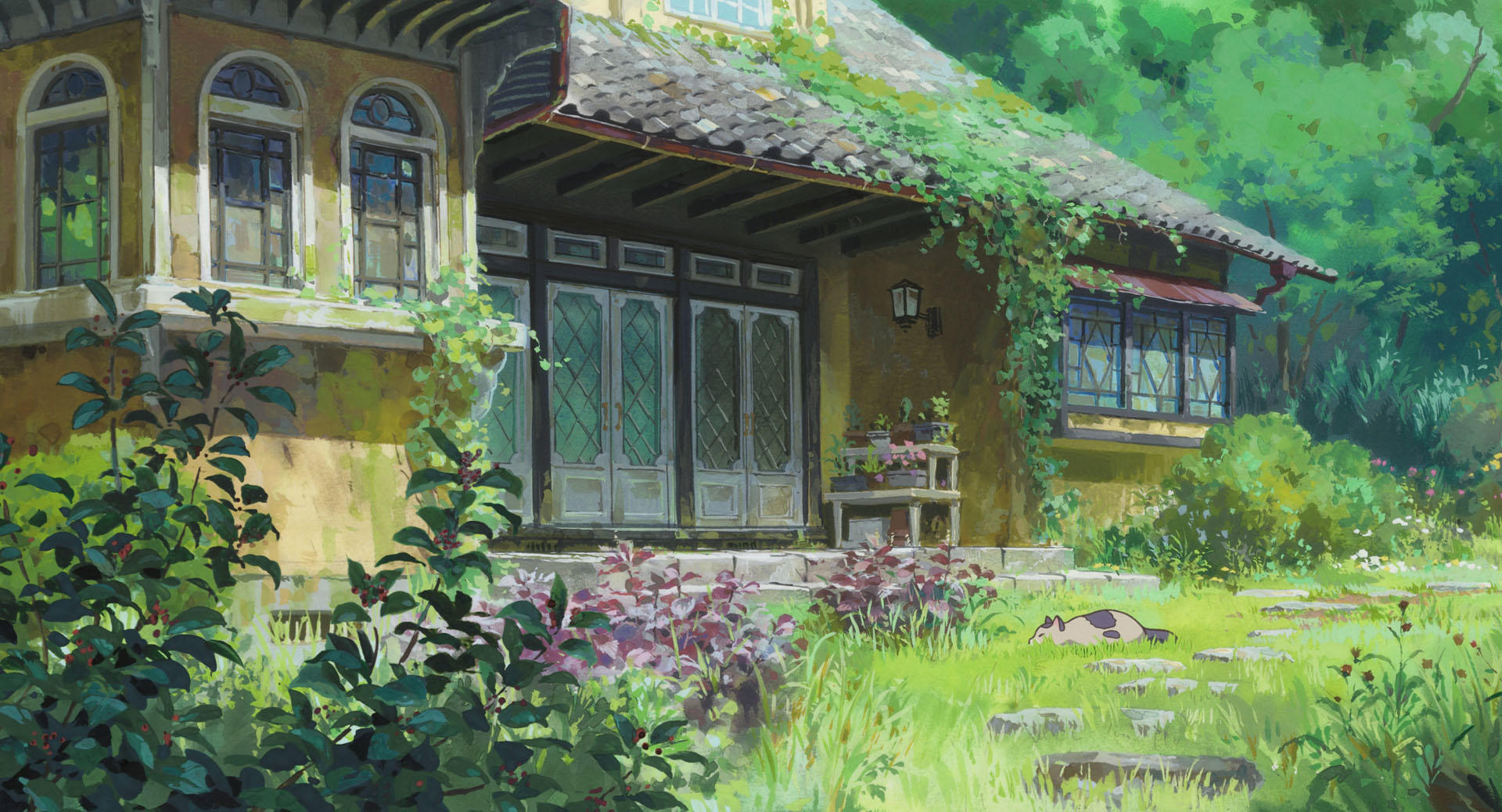
You can provide a relative path to an image in the same directory as the markdown file. (e.g: karigurashi002.jpg refers to content/authoring/elements/images/karigurashi002.jpg in the project).
{{< image
        src="karigurashi002.jpg"
        alt="Studio Ghibli: karigurashi002.jpg"
>}}
Example 2: Image from Site Resource#
Instead of providing a relative path to an image in the same directory as the markdown file, you can also provide an absolute path to an image from the assets/ directory (e.g., images/chihiro043.jpg refers to assets/images/chihiro043.jpg in the project).
{{< image
        src="images/chihiro043.jpg"
        alt="Studio Ghibli: chihiro043.jpg"
>}}
Example 3: Image from remote URL#
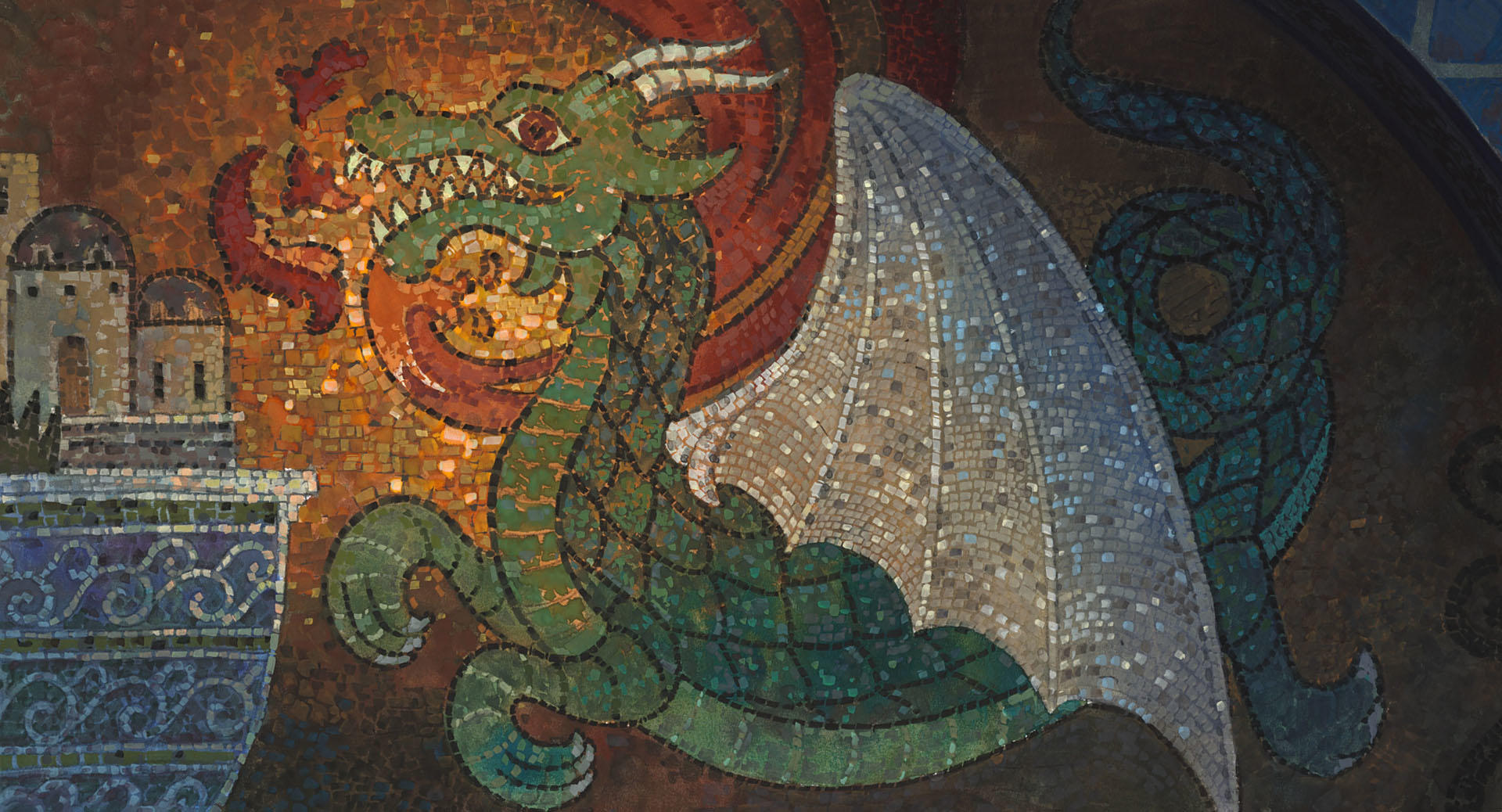
You can also load images from remote URLs ( remote url should start with either http:// or https:// ).
{{< image
        src="https://www.ghibli.jp/gallery/ged003.jpg"
        alt="Studio Ghibli: ged003.jpg"
>}}
Example 4: Image With Optional Caption#
{{< image
        src="karigurashi002.jpg"
        alt="Studio Ghibli: karigurashi002.jpg"
>}}
Caption Alignment#
Left Aligned Caption (Default)#

{captionalign="left"}{{< image
src="karigurashi002.jpg"
alt="Studio Ghibli: karigurashi002.jpg"
title="Studio Ghibli: Arrietty (2010)"
captionalign="left"
>}}Center Aligned Caption#

{captionalign="center"}{{< image
src="karigurashi002.jpg"
alt="Studio Ghibli: karigurashi002.jpg"
title="Studio Ghibli: Arrietty (2010)"
captionalign="center"
>}}Right Aligned Caption#

{captionalign="right"}{{< image
src="karigurashi002.jpg"
alt="Studio Ghibli: karigurashi002.jpg"
title="Studio Ghibli: Arrietty (2010)"
captionalign="right"
>}}Example 5: Image with Width and Height#

{width="300" height="200"}{{< image
src="karigurashi002.jpg"
alt="Studio Ghibli: karigurashi002.jpg"
title="Studio Ghibli: Arrietty (2010)"
width="300"
height="200"
>}}
Example 6: Dark Mode / Light Mode Specific Images#
Add hideindark="true" and hideinlight="true" attributes to hide images in dark mode and light mode respectively.

{hideindark=true}

{hideinlight=true}{{< image
src="images/chihiro043.jpg"
alt="Studio Ghibli: chihiro043.jpg"
title="Studio Ghibli: Spirited Away (2001)"
hideindark=true
>}}
{{< image
src="karigurashi002.jpg"
alt="Studio Ghibli: karigurashi002.jpg"
title="Studio Ghibli: Arrietty (2010)"
hideinlight=true
>}}Try switching between light and dark mode to see a different image above each time!
Example 7: Style Variations#
Add variation attribute to apply different style variations to images.

{variation="accent"}{{< image
src="images/chihiro043.jpg"
alt="Studio Ghibli: chihiro043.jpg"
title="Studio Ghibli: Spirited Away (2001)"
variation="accent"
>}}Other supported
variationvalues areinfo,note,tip,warning,important,caution,accent, orinverted.